
iFit Help: Export Your Workout Data
Organize and track your workout data with iFit. Export your information to another platform so you have it available to you anytime and anywhere.
Aug 15, 2019
·
2 min read
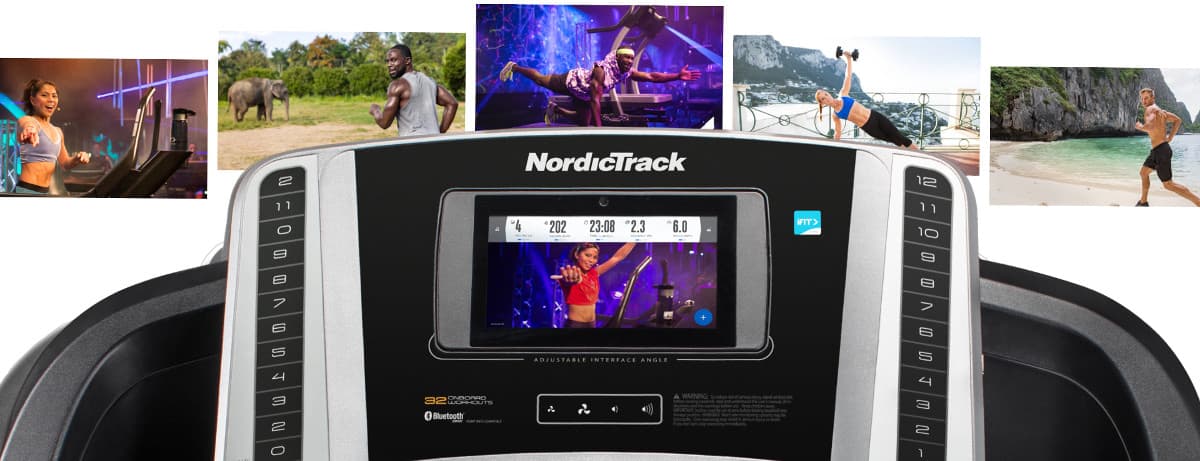
Now that you are connected to your Bluetooth® machine and set up with iFit® properly, it’s time to organize and track your performance. Seeing how far you’ve come can help you determine how and where you could improve next.
So, to help you organize and track your workout data, iFit has made it possible to export your information to another platform so you have it available to you anytime and anywhere.
Keep in mind, you can only export workouts that you have completed. Follow these steps:
Export All Of Your Workout Data

- Log in to your iFit account.
- Hover over your name in the top right, then click Settings.
- From the User Info tab, scroll to the bottom of the page until you see Download All Workouts.
- Select a date range, then click the blue Download Workouts button.
- You’ll receive an email within 24 hours that includes a zip file of all your workouts. Be sure to download the file within 48 hours of receiving the email or you may have to export your workouts again.
Export Individual Workout Data
- Log in to your iFit account.
- Hover over Menu at the top, then click Workouts from the list.
- From the History tab, click the completed workout that you want to export.
- You should see the Export button right above the workout details. Hover over it, then select the format you’d like. For map-based workouts, you can export your data in GPX, TCX, CSV, or KML format. For all other workouts, you can export them in TCX or CSV format.
QUICK TIP: If you download a TCX file, make sure you have the right application to open it on your computer. If a message appears saying, “There is no application set to open the document,” then choose or download an application on your computer that supports it.
For iFit support, please see here!
Was this article helpful to you? Let us know in the comment section below!